
Quick start
If you are setting up ReadyTab for the first time, this is the shortest path to a usable dashboard.
Before you start
Install and enable
- Install ReadyTab in your browser — see Installing ReadyTab for Chrome, Edge, Brave, and Firefox
- Make sure the extension is enabled
- Your browser may warn that an extension changed your new tab page — keep this change so ReadyTab can load as your start page
- Open a new tab to confirm ReadyTab loads
- If another extension replaces the new tab page, disable that conflict first
Good default expectation
- Your first space may be empty
- You can start with a group, bookmarks, or suggestions
- Settings, search, and spaces can all be adjusted later
- Most advanced features remain optional until you need them
First run, step by step
- Open a new tab. ReadyTab loads as the new tab page.
- On your empty first board, choose Import bookmarks → Choose folders, Popular sites → Browse sites, or Start blank → Add group. Import is recommended when browser bookmarks are available; otherwise popular sites are recommended. The Set up the essentials panel applies link target, clock, search, Spotlight, favicons, theme and logo changes immediately.
- Add your first items inside that group, such as links, headers, text blocks, clipboard items, or launchers.
- Open Settings to configure search, appearance, backgrounds, spaces, data import and export, session recovery, and optional Pro features.
- Use Ctrl + Space or / to open Spotlight search and jump to saved links quickly.
Good first setup
Create one group for daily links, one group for tools, and one group for work or project shortcuts.
Common first tasks
Create your first group
- On the start screen, click Add group under Start blank to create New group immediately.
- Rename the group using its edit control.
- Add your first links or items inside it. On an existing board, use + New to create more groups.
Start with popular sites
Click Browse sites, choose Shortcuts, Favorites, or + New group, then select sites. + New group opens a name field; enter your name and confirm with Add group or Enter. Shortcuts use the large icon tiles. New groups fill available columns from left to right before wrapping to another row, keeping existing groups in place. Clicking a selected site in the same destination removes it; clicking it with another destination active moves it there. Back preserves your selection. Add sites creates the selected shortcuts and groups together, then automatically fits group heights to their contents and compacts the layout.
After importing, adding sites or starting blank, Undo is available for ten seconds. It removes only what that action added. Later empty workspaces show a smaller setup panel; all preferences remain available in Settings.
Create a second space
- Open Settings → Spaces
- Create or import another space
- Use it for a separate context like work or personal
Import bookmarks
- Open Settings → Data → Choose bookmarks, or use Choose folders under Import bookmarks on an empty board.
- Select folders, or expand them to select individual links. Nested folders become separate groups; loose bookmarks become Quick links.
- In the preview, choose a destination workspace for each group and use the arrows to change the order.
- Click Import & open dashboard. Groups are added below existing content in the preview order, four across, with heights fitted to their contents and gaps compacted. Existing groups with the same name stay intact; the new group receives a numbered suffix.
Your browser bookmarks are never changed. Cancel closes the preview without importing anything. The workspace picker lists local workspaces, including password-protected workspaces that are already unlocked. Unlock a protected workspace before opening the importer. Shared workspaces are excluded. Unsupported bookmark URLs, including bookmarklets, are skipped and counted in the dialog.
Import a workspace
If you already have a ReadyTab backup or a workspace from another device:
- Open Settings → Data
- Use Import JSON and choose your backup file
- Your spaces and groups are restored
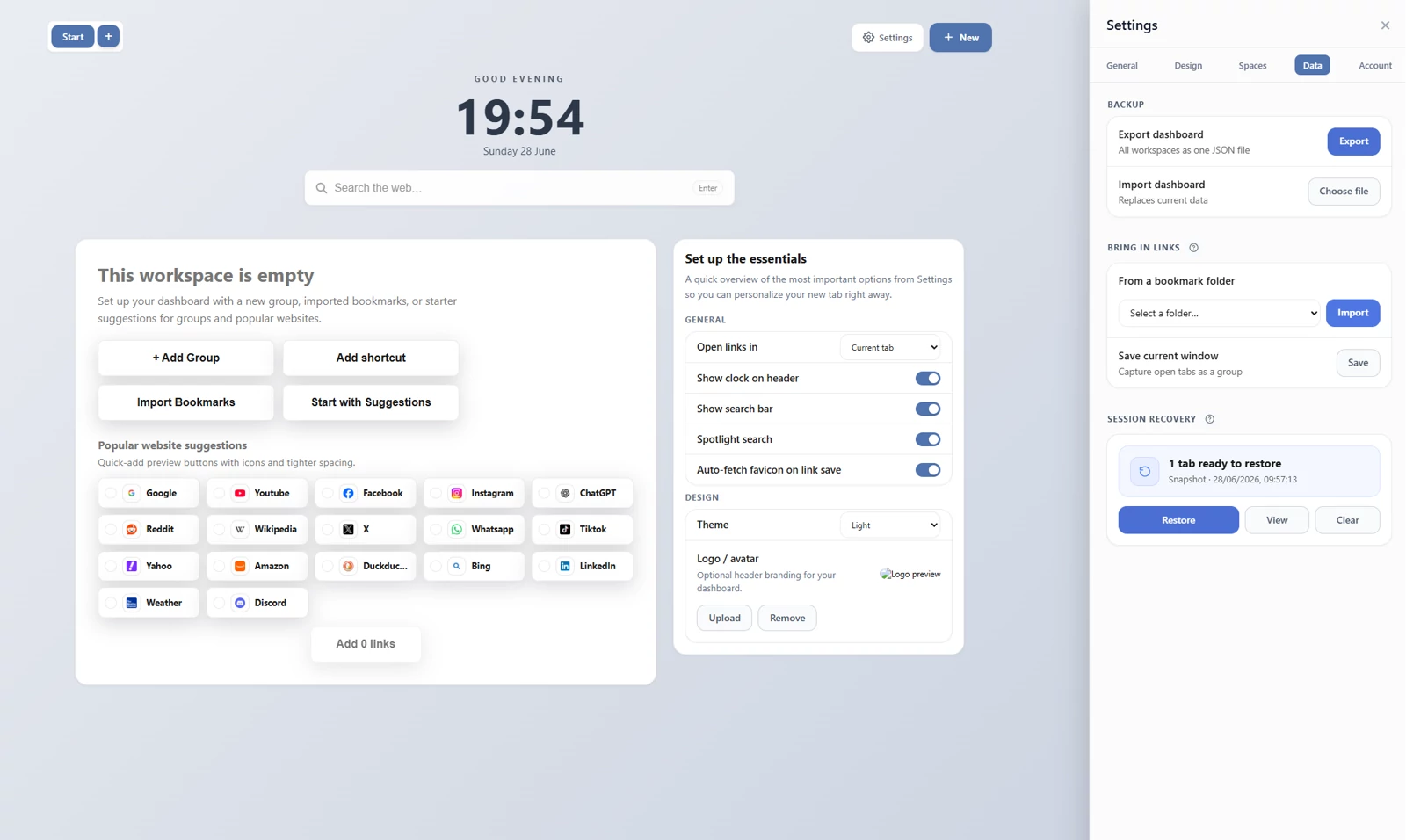
Importing a workspace from a JSON backup (Settings → Data → Import JSON).