
Sharing & publishing Full
Creating shares requires Full
ReadyTab Full includes creating share codes, public boards and managed team boards. Sync-only covers your own cloud dashboards. Receiving a board is free: anyone can import an independent copy, subscribe to a managed board, or edit it with the owner's edit key. See Plans and licenses.
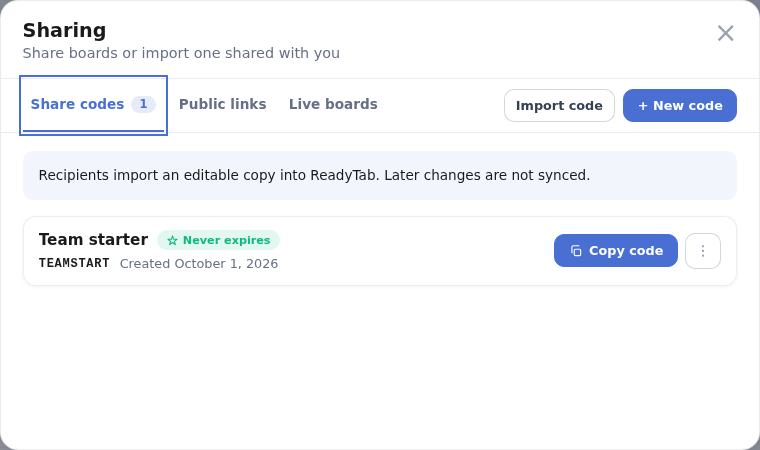
ReadyTab has three ways to share a space, each aimed at a different audience. Open Settings → Spaces → Sharing to create and manage all three. Each tab explains what recipients get. Use + New to select a source workspace, Import code to receive an independent copy, or Join board to subscribe to a live board. Direct sharing actions on individual workspaces remain available.
| Share code | Public board | Managed board | |
|---|---|---|---|
| What the recipient gets | Their own editable copy (a fork) | A read-only web page | A connected tab, read-only by default |
| Needs the extension? | Yes — to import | No — opens in any browser | Yes — to subscribe |
| Delivered as | A short code (CODE.SECRET) | A link (URL) | A token (+ optional password) |
| Stays in sync? | No — one-time copy | No — frozen snapshot | Yes — updates flow to subscribers |
| Recipient can edit it? | Yes (it's their copy) | No | Yes, with an edit key |
| Creator can update it later? | Yes — same code, new imports only | Yes — same link, all viewers | Yes — pushes to all subscribers |
| Encryption | End-to-end (license-derived secret) | End-to-end (secret in URL fragment) | End-to-end (token [+ password]) |
| Expiry | 30 days, or never | 30 days, or never | Until you unpublish |
| Manage from | Settings → Spaces → Sharing → Share codes | Settings → Spaces → Sharing → Public links | Settings → Spaces → Sharing → Live boards (publish & subscribe) |
The one-line mental model:
Share code = hand someone a starter they make their own. Public board = put a page on the web behind one link. Managed board = keep one connected board for viewers and optional editors.
Share code — a one-time copy
A share code creates an encrypted snapshot of one space. Anyone with the extension enters the code and imports it as a new, fully editable space of their own. From that moment their copy and yours are independent — editing either one never affects the other.
Because it's a fork, updating a code only changes what future imports receive — people who already imported keep their copy untouched. (There's no way to push into a copy someone already owns; that would be collaboration, which share codes are not.)
Workflow example — onboarding starter
- You build a “Design team links” space.
- Open Settings → Spaces → Sharing → Share codes → + New code, select that space, and create a code like
QA7B4SNG.1A2B…. Optionally name it and set it to never expire. - You paste the code into your team wiki.
- A new teammate opens Settings → Spaces → Sharing → Share codes → Import code, pastes it, and gets their own copy to customize.
- Weeks later you add three more links. Open Settings → Spaces → Sharing → Share codes → ⋯ → Update code. The code stays the same, so the wiki link still works — and new teammates now get the improved version. Existing teammates keep their personalized copies.
Public board — one read-only link, no extension
Publishing turns a space into a frozen, read-only web page that anyone can open in a browser — no extension required. The recipient sees a standalone reader page that renders your board as designed.
Unlike a share code, there's a single link everyone opens, and when you update it, every viewer sees the new version (the link never changes).
What gets published
Launcher buttons and custom CSS are stripped, and clipboard content is excluded unless you explicitly opt in. The snapshot is encrypted in your browser; the decryption secret lives in the link fragment, so treat the link like a password.
Workflow example — a public resource page
- You build a “Free SEO tools” space.
- Open Settings → Spaces → Sharing → Public links → + New public link, select that space, choose a title/description, and copy the link.
- You drop the link in your bio / a blog post. Visitors open it in any browser.
- You add a new tool to the space, then Settings → Spaces → Sharing → Public links → ⋯ → Update snapshot. The link is unchanged, and everyone who opens it now sees the new tool.
See Public boards for the full publish flow.
Managed board — a connected team board
Publish a source space as a managed board and share its read token plus any password. Subscribers get a connected tab inside ReadyTab. It is read-only by default; the owner can generate multiple named edit keys for people or groups. Collaborators do not need a paid plan or separate editor accounts.
Workflow example — a team board
- With Full, publish Team links from Settings → Spaces → Sharing → Live boards.
- Choose Edit keys → Add key and give each key a name. Choose Open shared board beside a key to work in the connected team tab.
- Send colleagues the read token, any password and their edit key.
- They choose Join board in Sharing → Live boards, then Enter edit key, and work in the connected tab.
- Edits autosave after a short delay. While the board is visible, it fetches updates every 30 seconds, and immediately when you return. Clean boards update automatically; conflicting edits require review on the board.
A restored source is a separate local copy. Use the connected team tab for collaboration; publishing from the separate source remains an explicit action. Pending shared edits are saved locally for recovery and removed from recovery storage after acknowledgement or explicit discard. Recovered work requires review before sending. Each named key can be replaced or revoked independently. See Managed boards for keys, recovery, conflicts and viewers.
Which one should I use?
- “They shouldn’t need to install anything.” → Public board.
- “Give them a starting point they’ll make their own.” → Share code.
- “A team needs one board, with viewers and optional editors.” → Managed board.
Not sharing — syncing your own boards
If you just want your own dashboard mirrored across your devices, that's Cloud sync, not a sharing mode.